
When you start thinking about integrating Reporting Services into an application, one question that might arise is how to display a list of available reports to a user. Although Reporting Services allows a user to browse through reports on the report server (see the figure below), chances are you will want to provide a snazzy custom user interface and possible apply additional logic before presenting the end user with a list of reports.
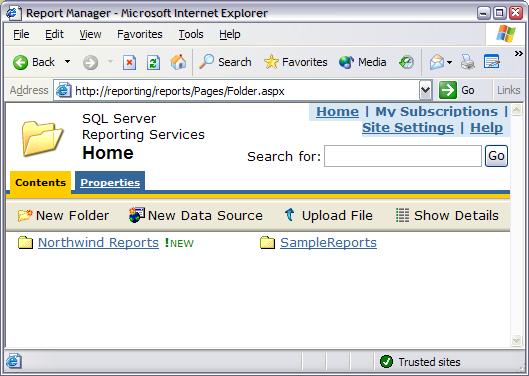
Unfortunately, this demonstration isn’t exactly snazzy looking, but it will show you how to use the web service API to pull back a list of reports and display them in a tree control, as shown in the next screen shot.

This sample uses the Tree View from the Internet Explorer Web Controls package. You can download the free control from Microsoft’s ASP.NET site. Follow the instructions included with the package to install the Tree View control into your Visual Studio .NET toolbox.
The complete source code for this project is available here. At the bottom of this article you can find a list of resources to cover some of the topics (impersonation, web service proxies) that we use but do not explain in detail.
Create The ASP.NET project
The first step is to create a new ASP.NET web application project. We’ve renamed the Webform1.aspx file the wizard provides to the name ListReports.aspx. As for the user interface, all we will need on the form is a tree control. The ASPX contents look like the following.
<%@ Page
    language="c#"
    Codebehind="ListReports.aspx.cs"
    AutoEventWireup="false"
    Inherits="RsIntegration.ListReports"
%>
<%@ Register
    TagPrefix="iewc"
    Namespace="Microsoft.Web.UI.WebControls"
    Assembly="Microsoft.Web.UI.WebControls"
%>
<HTML>
    <HEAD>
        <title>ListReports</title>
    </HEAD>
    <body>
        <form id="Form1" method="post" runat="server">
            <iewc:TreeView id="TreeView1" runat="server"/>
        </form>
    </body>
</HTML>
Setting Up The Web Service Proxy
Before we can populate the tree control from the ListReport code-behind, we will need a proxy to invoke Web Service. In the VS.NET 2003 IDE, select the Project menu and click on ‘Add Web Reference’. In the dialog box shown below, enter the path to the ReportService.asmx file where Reporting Services is installed.

Once the IDE has located the service you can change the Web Reference name to a more descriptive entry, in the dialog above I use ReportService. This name will become the namespace for the web service proxy.
Global Constants
I found it useful to define a few constants in this project to keep track of URL and report paths. I added the following to the Global class in global.asax.cs.
// Report Server defines the URL to root of the
// Reporting Services home page.
public static string ReportServer
{
    get { return "http://reporting/reportserver"; }
}

// ReportPath, when appended to the ReportServer property,
// will define the root of the report search.
// For example, to view all available reports on the report
// server, use "/" as the ReportPath. Setting the value to
// "/MyDemoReports", would only show reports and subdirectories
// under http://ReportServer/MyDemoReports.
public static string ReportPath
{
    get { return "/SampleReports"; }
}

// There are a couple places where we need to do string
// manipulation to add and remove path seperators -
// sometimes the seperator needs to be passed as an array
// of char, othertimes as a string. These two properties
// simply define both so the code is a little cleaner
// when we do the string munging.
public static char[] PathSeparatorArray
{
    get { return pathSeparatorArray; }
}

public static string PathSeparatorString
{
    get { return pathSeparatorString; }
}

protected static char pathSeparator = '/';
protected static char[] pathSeparatorArray = { pathSeparator };
protected static string pathSeparatorString = new string(pathSeparator, 1);
The logic behind ListReports.aspx
With everything in place, we can begin to build our tree control. Let’s first take a look at the Page_Load event handler.
private void Page_Load(object sender, System.EventArgs e)
{
    if(!Page.IsPostBack)
    {
        ReportingService rService = new ReportingService();
        rService.Credentials = System.Net.CredentialCache.DefaultCredentials;
        CatalogItem[] catalogItems;
        catalogItems = rService.ListChildren(Global.ReportPath, true);
        BuildTree(catalogItems);
    }
}
First, we instantiate our web service proxy. The upcoming web service call requires authentication, and CredentialCache.DefaultCredentials holds the credentials for the current security context. (Note, in the web.config file for this application we are using %lt;IDENTITY impersonate="true" />to execute with the identity of the client. For more information, see resources at the end).
Reporting Services provides the ListChildren API to find out what is in a given folder on the server. The first parameter is the path to the folder to look in, the second parameter is a flag to indicate if the server should recurse through subdirectories. Since we want to avoid making multiple web service calls, we will ask the server to recurse and return everthing we need on one invocation.
The web service call will return an array of CatalogItem objects. (Note: only items the user has permission to view will appear in the result). A CatalogItem object exposes a number of properties with information about the child item, for example, Description, CreationDate, and Size. We will some of these properties to work in the BuildTree method.
private void BuildTree(CatalogItem[] catalogItems)
{
   foreach(CatalogItem item in catalogItems)
   {
      if(item.Type == ItemTypeEnum.Report)
      {
         string path = item.Path.Remove(0, Global.ReportPath.Length);
         string[] tokens = path.Split(Global.PathSeparatorArray);
         BuildNodesFromTokens(tokens, 0, TreeView1.Nodes);
      }
   }
}
In BuildTree we iterate through the array of CatalogItem objects to pick out just the reports. In addition to reports, the array of CatalogItem objects will contain objects representing data sources, sub folders, and resources, to name a few. Inspecting the Type property of a CatalogItem allows us to work with just reports.
From here, the rest of the logic in this page works to build the tree. To make the algorithm easier, we strip the parent directory from the CatalogItem object’s path, and then split the remaining part of the path by the path separator. The Path property for the ‘Company Sales’ sample report will return ‘/SampleReports/CompanySales’. What we pass to the next method is an array of strings containing 2 elements : “SampleReports” and “CompanySales”.
The BuildNodesFromTokens method , shown next, walks down the array of tokens to build tree nodes where needed. The most important part of the method is where we build a TreeNode to represent a report. We need to set the NavigateUrl of these nodes so the user can click to go to the report page. The destination will be the RenderReport.aspx page we build in the next section. RenderReport.aspx will need to know what report the user requested, so we will reconstruct the path to the report by concatenating the tokens together and passing the result on the query string. The NavigateUrl property for the Company Sales TreeNode should come out looking like so: "RenderReport.aspx?Path=SampleReports%2fCompany+Sales”
private void BuildNodesFromTokens(string[] tokens, int index,
					TreeNodeCollection nodes)
{
    TreeNode node = null;

    // first, see if a node for the current token
    // exists on this level
    for(int i = 0; i < nodes.Count; i++)
    {
        if(nodes[i].Text == tokens[index])
        {
            // a node was found at this level,
            // no need to continue searching
            node = nodes[i];
            break;
        }
    }

    // no node was found, will need to
    // create a new tree node
    if(node == null)
    {
        node = new TreeNode();
        node.Text = tokens[index];
        nodes.Add(node);

        // check if this is the final token, which means
        // this token represents a report name
        if(tokens.Length -1 == index)
        {
            // set the navigation property to
            // allow the user to click the report name
            // and navigate to see the report
           node.NavigateUrl = "RenderReport.aspx?Path=" +
              Server.UrlEncode(
                   String.Join(Global.PathSeparatorString.ToString(), tokens)
              );
        }
    }

    // if we have not reached the end of the token list,
    // increase the level by (move down the tree) and
    // call ourselves again
    index++;
    if(tokens.Length > index)
    {
        BuildNodesFromTokens(tokens, index, node.Nodes);
    }
}
The Report Viewer
The RenderReport page we will build requires the report viewer WebControl provided in the Reporting Services samples. You’ll need to first build this sample solution which appears in the Reporting Services\Samples\Applications\ReportViewer\cs (or vb) directory underneath your Reporting Services installation. Open the project in Visual Studio .NET and build to produce the reportviewer.dll
Back in our solution, add the ReportViewer control to the Toolbox by right clicking and selecting “Add/Remove Items”. Browse to the reportviewer.dll assembly you created above and the new WebControl should appear in your Toolbox for web forms.
Render Reports
The RenderReport.aspx page has a fairly simple job. After dragging the ReportViewer component onto the page and adding some other window dressings, the ASPX contents should look similar to the following listing.
<%@ Register
      TagPrefix="cc1"
      Namespace="Microsoft.Samples.ReportingServices"
      Assembly="ReportViewer"
%>
<%@ Page
     language="c#"
     Codebehind="RenderReport.aspx.cs"
     AutoEventWireup="false"
     Inherits="RsIntegration.RenderIFrame"
%>
<HTML>
<HEAD>
<title>RenderIFrame</title>
</HEAD>
<body>
<form id="Form1" method="post" runat="server">
<h3>OdeToCode RenderReport Page</h3>
<cc1:ReportViewer
id="ReportViewer1"
runat="server"
Width="600px"
Height="400px">
</cc1:ReportViewer>
</form>
</body>
</HTML>
The logic for the page simply needs to set some properties on the ReportViewer. The ReportViewer, if you look at the source, is implemented as an IFRAME element and exposes properties to point the IFRAME src attribute to the correct report. We simply need to fetch the path parameter from the query string to build the complete path to the report.
if(!Page.IsPostBack)
{
    ReportViewer1.ServerUrl = Global.ReportServer;
    ReportViewer1.ReportPath = Global.ReportPath + Request["Path"];
}

Conclusion
There will be a number of ways to integrate Reporting Services into new and existing applications. In this article we used a web service API to build a tree control of available reports. There are additional web service APIs to render reports which would give you greater flexibility in the appearance of the final report – the subject for a future article.
by Scott Allen
Login to Download code


 Subscribe
 Twitter
 Search
 About
About
 Learn C#