
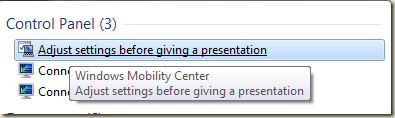
Presentation mode isn’t new (it was introduced in Vista), but it is handy. One easy way to turn presentation mode on is to type “present” into the Start menu search box and let Windows find the “Adjust settings before giving a presentation” item.
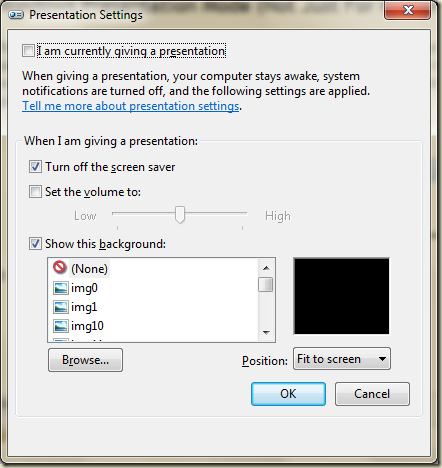
From here you can turn on presentation mode and tweak some settings.
Update: As Jim O’Neil points out, you can also use Windows+X key combo to launch the mobility center and then it’s one click to turn on presentation mode. I learn a new shortcut key everyday…
Notice the help text says “your computer stays awake”. I turned on presentation mode today just to keep my laptop awake while it sat in a corner coping a 16 GB file over WiFi.
Of course, presentation mode is useful when you have an actual presentation, too. In addition to the background, screen saver, and volume settings, Messenger will mark your status as busy and not throw toast on the screen (you’ll only get a blinky icon in the taskbar). Other applications can disable their notifications, too, but the author of the application has to write the code to be aware of notification state. Kirk Evans has an example.
Unfortunately, presentation mode is only available on laptops by default. It turns out you can do a fair amount of presenting from a desktop with Camtasia (love it) and Shared View.
The good news is you can have presentation mode on a desktop with just a couple registry tweaks: http://www.dubuque.k12.ia.us/it/mobilitycenter/
presentationsettings.exe is the name of the executable that displays the dialog shown above. If you want to toggle presentation mode from a script you can use:
presentationsettings /start
and
presentationsettings /stop
Another handy executable is mblctr.exe. This program launches the Windows Mobility Center with a UI to tweak brightness, power settings, presentation mode, and more.
This concludes my exuberant Windows tip of the day, I hope you found it useful.

 OdeToCode by K. Scott Allen
 Subscribe
 Twitter
 Search
 About
About
 Learn C#