
Sorting the Visual Studio "Add New Item" Dialog with PowerShell

The items in the "Add New Item" dialog box of Visual Studio appear in an arbitrary order. After a bit of sleuthing, I put together a brute force Powershell script to sort my items alphabetically. Now "Code File" appears near "Class", and I can always find "XML File" near the bottom of the dialog.
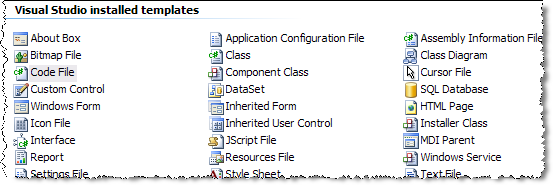
sorted items in vs2005

SortOrder, and my sanity, is restored.

What follows is the script. Download sort-vsItems.ps1. Let me caveat this script by saying it has only been tested on two machines. If you have any problems, do let me know.

# sort-vsItems
# scott@OdeToCode.com
# Modified by AlexanderGross at gmx dot de
#
# Use at your own risk!
# Script will make a backup of each template just in case.

# vjslib for .zip support.
[System.Reflection.Assembly]::Load("vjslib, Version=2.0.0.0, Culture=neutral, PublicKeyToken=b03f5f7f11d50a3a") | out-null

# Get list of VS installed templates.
$installDir = [System.IO.Path]::Combine((gp HKLM:Software\Microsoft\VisualStudio\8.0).InstallDir, "ItemTemplates")
$templateFiles = gci -recurse $installDir | ? {$_.extension -eq ".zip"}

# Append list of custom templates.
$installDir = [System.IO.Path]::Combine((gp "HKCU:\Software\Microsoft\Windows\CurrentVersion\Explorer\Shell Folders").Personal, "Visual Studio 2005\Templates\ItemTemplates")
$templateFiles += gci -recurse $installDir | ? {$_.extension -eq ".zip"}

# Sort all templates by filename.
$templateFiles = $templateFiles | sort name

$i = 1
$count = 0
$tmpDir = new-item ([System.IO.Path]::Combine([System.IO.Path]::GetTempPath(), [System.IO.Path]::GetRandomFileName())) -type directory
$buffer = new-object System.SByte[] (8192)

# Iterate through all template files.
foreach($templateFile in $templateFiles)
{
write-host "Processing" $templateFile.FullName

# Extract all files (no methods available to modify zip in place).
$zip = new-object java.util.zip.ZipFile($templateFile.FullName)
$entries = $zip.entries()
while($entries.hasMoreElements())
{
$zipEntry = $entries.nextElement()

# Ensure output directory exists.
$filename = [System.IO.Path]::Combine($tmpDir.FullName, $zipEntry.getName())

# $zipEntry.isDirectory() does not work for Microsoft zips (e.g. Web\CSharp\WinFxServiceItemTemplate.zip).
$directory = [System.IO.Path]::GetDirectoryName($filename)
if ([System.IO.Directory]::Exists($directory) -ne $true)
{
mkdir $directory | out-null

# In case the zip tells us it's a directory entry, skip the entry to prevent exceptions.
if ($zipEntry.isDirectory())
{
continue
}
}

$in = $zip.getInputStream($zipEntry)
$out = new-object java.io.FileOutputStream($filename)

while(($count = $in.read($buffer, 0, $buffer.Count)) -gt 0)
{
$out.write($buffer, 0, $count)
}

$out.Close()
$in.Close()
}
$zip.Close()

# Tweak the sort order element.
$vst = gci -recurse $tmpDir | ? {$_.extension -eq ".vstemplate"}
if ($vst -eq $null)
{
# The zip file does not contain a vstemplate.

# Clean temporary directory for the next template file.
del $tmpDir\* -force -recurse
continue
}

$xmlDoc = new-object System.Xml.XmlDocument
$xmlDoc.Load($vst.FullName)
if ($xmlDoc.VSTemplate.TemplateData.SortOrder -ne $null)
{
# Sort by zip name. Sort order must be a multiple of 10.
$xmlDoc.VSTemplate.TemplateData.SortOrder = ($i++ * 10).ToString()

# Sort by item name in Visual Studio.
# Uncomment this line if you want to let Visual Studio sort by item name.
# $xmlDoc.VSTemplate.TemplateData.SortOrder = "10"

$xmlDoc.Save($vst.FullName)
}

# Backup existing zip file.
$backupName = $templateFile.FullName + ".bak"
if(test-path $backupName)
{
# Remove previous backups.
remove-item $backupName
}
move-item $templateFile.FullName $backupName

# Zip up modified version.
$zip = new-object java.util.zip.ZipOutputStream(new-object java.io.FileOutputStream($templateFile.FullName))
$files = gci -recurse $tmpDir
foreach($file in $files)
{
if ($file.Attributes -contains "Directory")
{
# Subfolders are created automatically with files residing in subfolders.
continue
}

# Create a file entry.
# Replacing the last backslash from $tmpDir.FullName is crucial, the zips would work with any other
# zip editor but Visual Studio doesn't like files with a leading backslash (though one doesn't see
# it in WinZip).
$zipEntry = new-object java.util.zip.ZipEntry($file.FullName.Replace($tmpDir.FullName + "\", ""))
$zip.putNextEntry($zipEntry)
$in = new-object java.io.FileInputStream($file.FullName)
while(($count = $in.read($buffer, 0, $buffer.Count)) -gt 0)
{
$zip.write($buffer, 0, $count)
}
$in.close()
$zip.closeEntry()

}
$zip.close()

# Clean temporary directory for the next template file.
del $tmpDir\* -force -recurse
}

del $tmpDir -force -recurse

write-host "Running Visual Studio to refresh templates"
$vstudio = (gp HKLM:Software\Microsoft\VisualStudio\8.0).InstallDir
& $vstudio\devenv /setup

Powershell is beauty!

posted on Saturday, February 10, 2007 12:24 AM by scott

Comments

Saturday, February 10, 2007 12:35 AM by Shaka

# re: Sorting the Visual Studio "Add New Item" Dialog with PowerShell

you are the man
Saturday, February 10, 2007 7:51 AM by Jason Haley

# Interesting Finds: February 10, 2007

Saturday, February 10, 2007 8:40 AM by scott

# re: Sorting the Visual Studio "Add New Item" Dialog with PowerShell

Hmm, thanks to Jason I remembered the SortOrder is supposed to be a multiple of 10. My script doesn't do that. Since this seems to be working for me, I'm going to leave the script "as is" for now.

Again - no guarantees I have not broken anything....
Saturday, February 10, 2007 8:56 AM by Jason Haley

# re: Sorting the Visual Studio "Add New Item" Dialog with PowerShell

Scott, thanks for putting this into a script. There are still a few items out of our (according to their label in the dialog - like Window Form - due to using their file name as the order).

I looked at this awhile ago and have the listing of new items and new web items that I had on my machine at the time - along with their original sort order and file names at (http://jasonhaley.com/blog/archive/2005/12/11/129208.aspx
and http://jasonhaley.com/blog/archive/2005/12/18/129262.aspx)

You might be able to just rename those files before your order tweaking or special case the few that have file names not corresponding to their english label in the dialog.

I kept meaning to create a simple ui for this reordering but just never got around to it.
Saturday, February 10, 2007 9:15 AM by Brian Schmitt

# re: Sorting the Visual Studio "Add New Item" Dialog with PowerShell

Not trying to subtract from what you did, but There is a file over here that does the same thing: http://www.bartholomew.id.au/(X(1)S(ahm5wp55zuwoaaqwd2fply55))/Default.aspx?Page=FixVsItemSortOrder&AspxAutoDetectCookieSupport=1
Saturday, February 10, 2007 2:00 PM by scott

# re: Sorting the Visual Studio "Add New Item" Dialog with PowerShell

Brian:

Yeah, my Google powers didn't turn that up till after the fact. It looks like that project uses the SharpZipLib, which is cool.

I hope the Orcas version of .NET includes some serious support for archive files. This would have been much easier.
Monday, February 12, 2007 2:47 PM by Aaron Prenot

# re: Sorting the Visual Studio "Add New Item" Dialog with PowerShell

I did run into an issue running the script on my machine. Here is the error message (and some lines for context)

Processing C:\Program Files\Microsoft Visual Studio 8\Common7\IDE\ItemTemplates\VisualBasic\WinFxServiceItemTemplate.zip

Processing C:\Program Files\Microsoft Visual Studio 8\Common7\IDE\ItemTemplates\Web\VisualBasic\WinFxServiceItemTemplate
.zip
New-Object : Exception calling ".ctor" with "1" argument(s): "Could not find a part of the path 'C:\Documents and Setti
ngs\prenota\Desktop\j1pjv5ar.nbh\App_Code\service.vb'."
At C:\Documents and Settings\prenota\Desktop\sort-vsitems.ps1:40 char:24
+ $out = new-object <<<< java.io.FileOutputStream(
Exception calling "write" with "3" argument(s): "Cannot access a closed file."
At C:\Documents and Settings\prenota\Desktop\sort-vsitems.ps1:45 char:20
+ $out.write( <<<< $buffer, 0, $count)
Exception calling "write" with "3" argument(s): "Cannot access a closed file."
At C:\Documents and Settings\prenota\Desktop\sort-vsitems.ps1:45 char:20
+ $out.write( <<<< $buffer, 0, $count)
Processing C:\Program Files\Microsoft Visual Studio 8\Common7\IDE\ItemTemplates\Web\CSharp\WinFxServiceItemTemplate.zip
New-Object : Exception calling ".ctor" with "1" argument(s): "Could not find a part of the path 'C:\Documents and Setti
ngs\prenota\Desktop\j1pjv5ar.nbh\App_Code\service.cs'."
At C:\Documents and Settings\prenota\Desktop\sort-vsitems.ps1:40 char:24
+ $out = new-object <<<< java.io.FileOutputStream(
Exception calling "write" with "3" argument(s): "Cannot access a closed file."
At C:\Documents and Settings\prenota\Desktop\sort-vsitems.ps1:45 char:20
+ $out.write( <<<< $buffer, 0, $count)
Exception calling "write" with "3" argument(s): "Cannot access a closed file."
At C:\Documents and Settings\prenota\Desktop\sort-vsitems.ps1:45 char:20
+ $out.write( <<<< $buffer, 0, $count)
Processing C:\Program Files\Microsoft Visual Studio 8\Common7\IDE\ItemTemplates\CSharp\WinFxServiceItemTemplate.zip
Processing C:\Program Files\Microsoft Visual Studio 8\Common7\IDE\ItemTemplates\VisualBasic\WinFXUserControl.zip
Processing C:\Program Files\Microsoft Visual Studio 8\Common7\IDE\ItemTemplates\CSharp\WinFXUserControl.zip
Processing C:\Program Files\Microsoft Visual Studio 8\Common7\IDE\ItemTemplates\VisualBasic\WinFXWindow.zip
Processing C:\Program Files\Microsoft Visual Studio 8\Common7\IDE\ItemTemplates\CSharp\WinFXWindow.zip
Processing C:\Program Files\Microsoft Visual Studio 8\Common7\IDE\ItemTemplates\JSharp\1033\WinScript.zip
Processing C:\Program Files\Microsoft Visual Studio 8\Common7\IDE\ItemTemplates\CSharp\1033\WinScript.zip
Monday, February 12, 2007 8:22 PM by Christopher Steen

# Link Listing - February 12, 2007

Yahoo! Pipes: Ajax Mashup Builder [Via: Dion Almaer ] More Showing, More Hiding [Via: Karl ] Yahoo!...
Monday, February 12, 2007 8:26 PM by scott

# re: Sorting the Visual Studio &amp;quot;Add New Item&amp;quot; Dialog with PowerShell

Thanks for the report, Aaron. I will have to try the WCF item templates to see what happens.
Tuesday, February 13, 2007 8:28 AM by .NET (Never Explain Twice...or something like that)

# A double header post

This is my first blog post using Windows Live Writer . Setting up WLW to post to devpinoy was a great
Friday, February 23, 2007 3:39 AM by Joben.Rara.blogs(".NET")

# A double header post

This is my first blog post using Windows Live Writer . Setting up WLW to post to devpinoy was a great
Thursday, March 01, 2007 7:00 AM by Andrew Connell [MVP MOSS]

# Sort your Visual Studio item templates

Sort your Visual Studio item templates
Wednesday, March 07, 2007 8:58 PM by K. Scott Allen

# Update for the Visual Studio Items Sorting Script


Alexander Gro&#223; has a sharp looking blog, and he posted an enhanced version of my sort-vsItems PowerShell...
Wednesday, March 07, 2007 9:09 PM by BusinessRx Reading List

# Update for the Visual Studio Items Sorting Script

Alexander Gro&#223; has a sharp looking blog, and he posted an enhanced version of my sort-vsItems PowerShell
Friday, April 20, 2007 6:36 AM by Ken Brubaker

# Sort Visual Studio's &amp;amp;quot;Add New Item&amp;amp;quot; dialog

Sort the Visual Studio &quot;Add New Item&quot; dialog.
Saturday, June 09, 2007 2:36 AM by DotNetKicks.com

# Sorting the Visual Studio

You've been kicked (a good thing) - Trackback from DotNetKicks.com